How to run Kafka on Kubernetes: 5 easy steps using AWS
Jan10 February 2023
Blogs12 mins read
In this article I will introduce a step-by-step guide to show how you can set up a simple Apache Kafka cluster on a single-node Kubernetes cluster running on AWS.
You might find it helpful for testing out Apache Kafka components, operators, inter-broker communication and major version upgrades with the Confluent for Kubernetes operator (CFK).
This setup is an alternative to local minikube or vagrant examples.
Step
What you do
Main tools
1
Create an EC2 instance that installs Docker and Kind and creates a single-node cluster
AWS console, EC2 user data
2
Copy the kubeconfig to your local machine
AWS CLI, SSH, kubectl or k9s
3
Install the Confluent for Kubernetes operator
Helm
4
Create the Confluent Platform custom resources
kubectl
5
Open Confluent Control Center on port 80
Browser
What will you build?
A single-node Kubernetes cluster for Apache Kafka, created with the Kind tool and the Confluent for Kubernetes operator. The cluster will be accessible from your local machine with kubectl or k9s, and it will expose Confluent Control Center on port 80. You can of course install a full-flavour Kubernetes cluster, but for development, test and learning purposes Kind is quicker to get up and running.
Before we get started, I will be using the abbreviations CFK (Confluent for Kubernetes) and CP (Confluent Platform).
What is this “Operator” pattern you keep hearing about? It boils down to a Kubernetes pod that reacts to certain events of a CRD (Custom Resource Definition). CRDs are manifests, or YAML files, that extend the Kubernetes world to different types of objects (usually use-case specific) beyond those offered by default (pods, services, deployments, ingress). I think of it as a plugin system.
Confluent Platform is a set of supporting Apache Kafka components. CFK has modelled each of these components as CRDs, and once they are installed Kubernetes understands how to create and configure each object.
Describing the advantages and disadvantages of each is out of scope for this article.
Why run Kafka on Kubernetes in AWS instead of locally?
As a software engineer starting your journey with Apache Kafka, you might want to go to Confluent Cloud and, with a few clicks, get a full cluster up and running on any of the popular cloud providers.
If you are like me and want to understand or tinker with Apache Kafka Kubernetes components and supporting objects, I would recommend starting with a local installation of Minikube, Kind or Kubernetes itself.
CP is very resource intensive. You may find yourself waiting too long for responses because your setup contains 3x ZooKeepers, 3x Apache Kafka brokers, Schema Registry, ksqlDB, Kafka Connect, a source and sink database, multiple producers or consumers and what not. You might get the impression that your laptop is starting to melt. Being in this exact situation, I came up with the idea to rent better hardware. Build vs buy is always a factor when it comes to productivity, and I recommend a good article from Shopify engineering: The Journey to Cloud Development: How Shopify Went All-in on Spin.
I can think of multiple scenarios this setup might fit:
Sharing a demo (not local) cluster with a team member or a customer
Needing a machine with more RAM or CPU
Needing an x86 CPU (I am on ARM)
A DevOps engineer who wants to quickly test Helm, CFK or Ansible
Running an integration Kafka test from a continuous integration server
Just for fun, to learn and experiment with Kubernetes operators or your own Apache Kafka cluster
This guide was written in early 2023 against Confluent Platform 7.3, which still ran Kafka with ZooKeeper. Apache Kafka 4.0 has since removed ZooKeeper in favour of KRaft, so use KRaft-based versions for anything beyond a disposable test stack.
What do you need before you start?
A basic understanding of the following is recommended:
We will be using what I call “ClickOps”, a pain-free, manual setup of AWS in the web console. Future improvements could use one of the automation tools, such as a set of AWS CLI commands organised in a bash script, AWS CloudFormation, Ansible or Terraform manifests.
For this project I recommend starting with:
Setting
Value
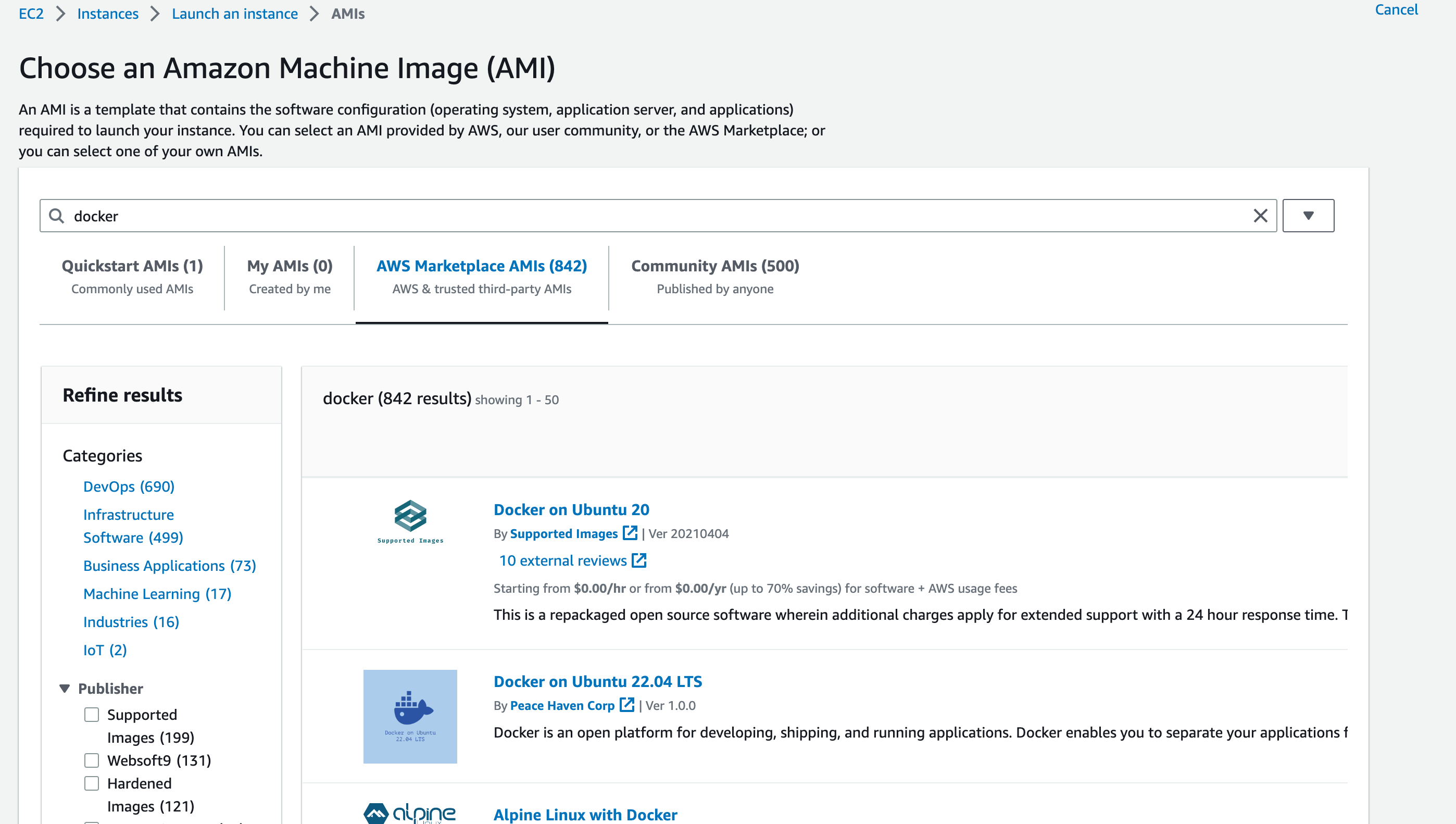
AMI
Ubuntu 22.04 LTS
Instance size
t2.xlarge (4 CPU, 16 GB RAM)
EBS volume
30 GB of gp2
Tags
name = kind
Security group
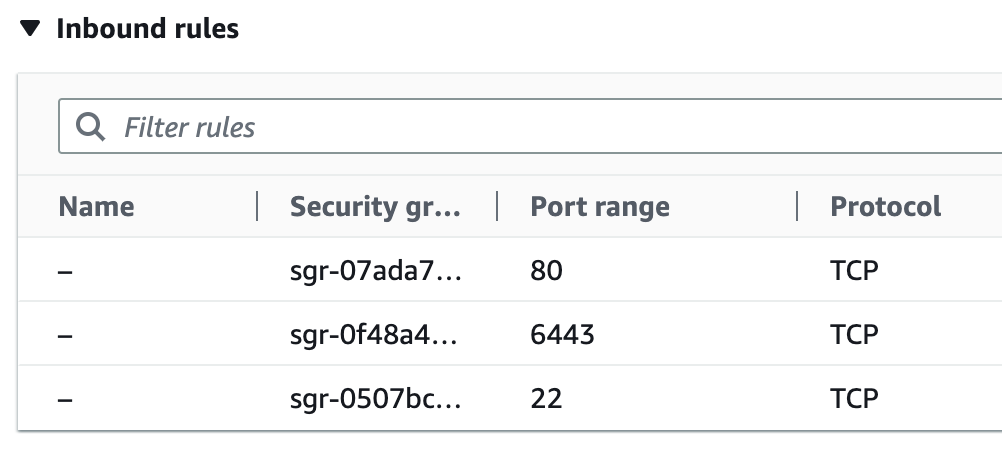
Allow TCP traffic on ports 22, 80 and 6443
Navigate to the EC2 console, click “Launch Instance” and select all the properties above.
Please make sure that the security group allows TCP traffic on ports 22, 80 and 6443.
Next, copy the code below and paste it into “Advanced details” / “User data” as an initialisation script that runs on the first boot of the instance.
Finally, click “Launch Instance”. It will install Docker and Kind and create a cluster.
What’s worth noting is the configuration file for Kind. It’s required for opening the port used by kubectl, 6443 (“networking”), and for opening Confluent Control Center (C3) on port 80 of the server’s IP (“extraPortMappings”). This will become clearer later on, when we open externalAccess of type nodePort on the C3 pod.
Note: you may want to pick an AMI with Docker already installed, which will shorten your server start-up time.
Save the private SSH key (identity file) on your local machine. Let’s append it to your SSH config so it doesn’t clutter the next commands.
To interact with your new Kind Kubernetes cluster, you need to download its configuration file. We can use the AWS CLI for this. If you manage multiple AWS accounts, I recommend an excellent tool for AWS profile management called aws-vault.
To download the kubeconfig, start a new shell session using the correct profile (this depends on the profile name you set; mine is osodev).
aws-vault exec osodev
Let’s check that the Kind cluster is ready for action with the next command.
If successful, you should see only the name of the cluster in the response (no error code). If you see bash: line 1: kind: command not found or No kind clusters found., something has gone wrong. Check the start-up logs using:
less /var/log/cloud-init-output.log
Setting up access to your Kind cluster
Next, we want to access the cluster from our local machine so we can install, configure and administer Kafka. To grab the configuration and certificate from the remote machine, open a terminal window on your local machine and run:
Let’s walk through what each command does. First, we fetch the AWS EC2 instance IP and save it to the REMOTE_IP variable. If you do not use the AWS CLI, copy the IP from the AWS EC2 console and use it in place of $REMOTE_IP.
Next, the SSH command gets the kubeconfig and creates a file called .kindk8s in your home directory. The command exports a KUBECONFIG path so that the sed commands can apply the modifications that tell your local kubectl client how to reach the remote cluster.
Now, with the following command you can access the remote cluster and apply any Kubernetes manifests.
export KUBECONFIG=~/.kindk8s [k9s | kubectl]
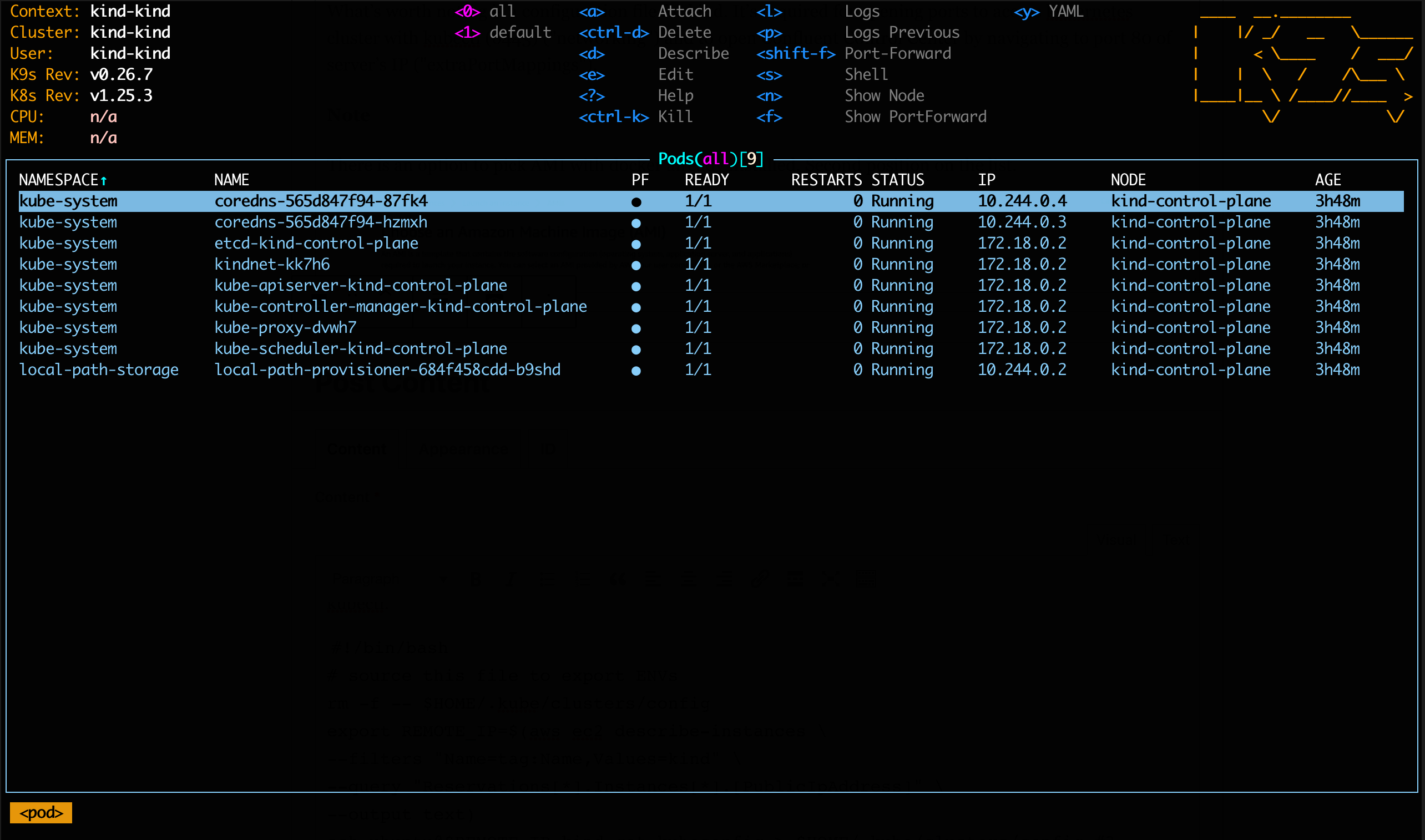
If everything looks good and k9s has started, you should see output similar to this.
Step 3: Install the Confluent for Kubernetes (CFK) operator
Now that we can securely access the cluster and see what is going on, we can install the Confluent CRDs and packages using the Helm chart provided by Confluent. On your local terminal, run the following commands:
Note: version 0.581.16 was the latest at the time of writing.
To check for an update, run:
helm search repo confluent --versions
If successful, you should now have the Confluent operator pod up and running in the default namespace. You can check this using the following command:
kubectl get pods -n default
The result should look something like this:
Step 4: Create the Confluent Platform custom resources
Now that the operator is monitoring the cluster for Confluent CRDs, we can create a new namespace and deploy a manifest containing all the components and their configuration using the following command:
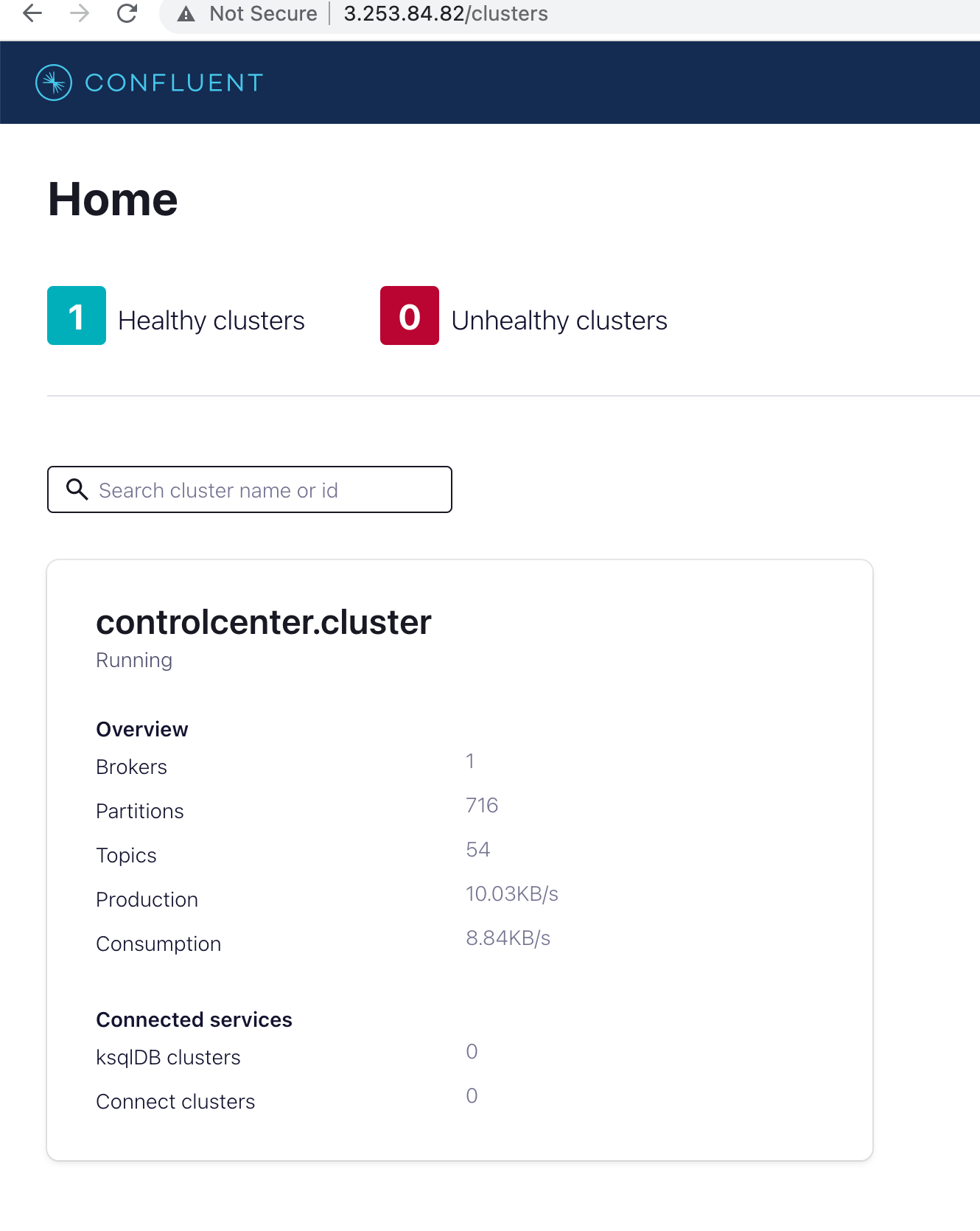
Give the components time to come up; this should take around 60 seconds. You should then be able to use Control Center to administer your cluster. Open a new browser window and navigate to:
http://$REMOTE_IP
If you are interested, the key configuration (contained in the YAML file you applied above) that exposes Control Center over the EC2 public IP is shown below:
Summary: how long does it take to run Kafka on Kubernetes this way?
After a few practice rounds using the commands above, it should take less than 10 minutes to build a single-node Apache Kafka cluster on Kubernetes.
We could have wrapped all of the steps above into a single script, but that was not the goal here: I wanted to understand how each step works.
Finally, don’t forget to tear down the EC2 instance, otherwise you’ll be charged! You can keep the security group and private key for next time, as these are free.
Key takeaway: Kind on a single EC2 instance gives you a disposable, shareable Kafka on Kubernetes test stack in under 10 minutes. Tear the instance down when you finish, and treat it as a test environment, not a production design.
In conclusion, setting up Kafka on AWS with Confluent for Kubernetes is a powerful and efficient way to manage Kafka clusters for development, testing and learning. By using the Kind tool and the Confluent for Kubernetes operator, you can quickly create a single-node Kubernetes cluster, make it accessible from your local machine and expose Confluent Control Center.
Here are some useful references I used to create this article:
Yes, for testing. This guide runs a single-node Kind cluster on one t2.xlarge EC2 instance (4 CPU, 16 GB RAM) with one ZooKeeper, one Kafka broker and Confluent Control Center. It suits development, testing and learning, not production.
What is Confluent for Kubernetes (CFK)?
CFK is Confluent’s Kubernetes operator. It models each Confluent Platform component as a Custom Resource Definition, so once you install it with Helm, Kubernetes knows how to create and configure Kafka brokers, ZooKeeper and Control Center. Strimzi and Bitnami’s Kafka Helm chart are alternatives.
Why use Kind on EC2 instead of minikube on a laptop?
Confluent Platform is resource intensive, and a full local stack can make a laptop crawl. Running Kind on an EC2 instance gives you more RAM and CPU, an x86 machine, and a cluster you can share with a team member or customer, while Kind stays quicker to set up than a full Kubernetes install.
Which ports does the EC2 security group need to allow?
Allow TCP on port 22 for SSH, port 6443 for the Kubernetes API that kubectl and k9s use, and port 80 for Confluent Control Center, which Kind maps from NodePort 30200.
How do you avoid unexpected AWS charges after testing?
Tear down the EC2 instance as soon as you finish, because you are charged while it runs. The security group and private key are free, so you can keep them for next time.